
Download Macromedia JRun – Fast J2EE Server for Windows
Introduction & Overview
Macromedia JRun is a lightweight yet powerful J2EE application server designed to accelerate the delivery of Java‑based web applications on Windows platforms. First released in the early 2000s, JRun quickly became a go‑to solution for developers who needed a reliable, affordable server that could run on modest hardware such as Windows 98 and its predecessors. The current version, 4.0, received its last official update on January 31 2007, but the software still enjoys a steady stream of downloads—over 5,200 since its catalog entry in 2007—with a noticeable user base in the United Kingdom. Although it’s offered only as a trial version and is limited to English language support, JRun’s small footprint and straightforward configuration make it an attractive option for small‑to‑medium enterprises, legacy projects, or educational environments where a full‑scale enterprise server would be overkill. This review will explore the core features, installation steps, system compatibility, and the real‑world pros and cons that developers encounter when they choose Macromedia JRun for their Java EE workloads.
Key Features and Installation Guide
Feature Highlights
- Full support for J2EE 1.3 specifications, including Servlets, JSP, and EJB.
- Integrated web container with fast request processing and low latency.
- Built‑in clustering capabilities for simple load balancing and failover.
- Secure SSL/TLS configuration out of the box, ensuring encrypted communication.
- Lightweight footprint: consumes less disk space and memory than most commercial Java servers.
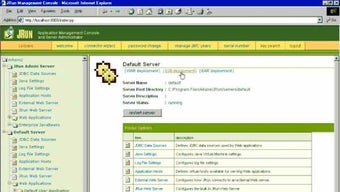
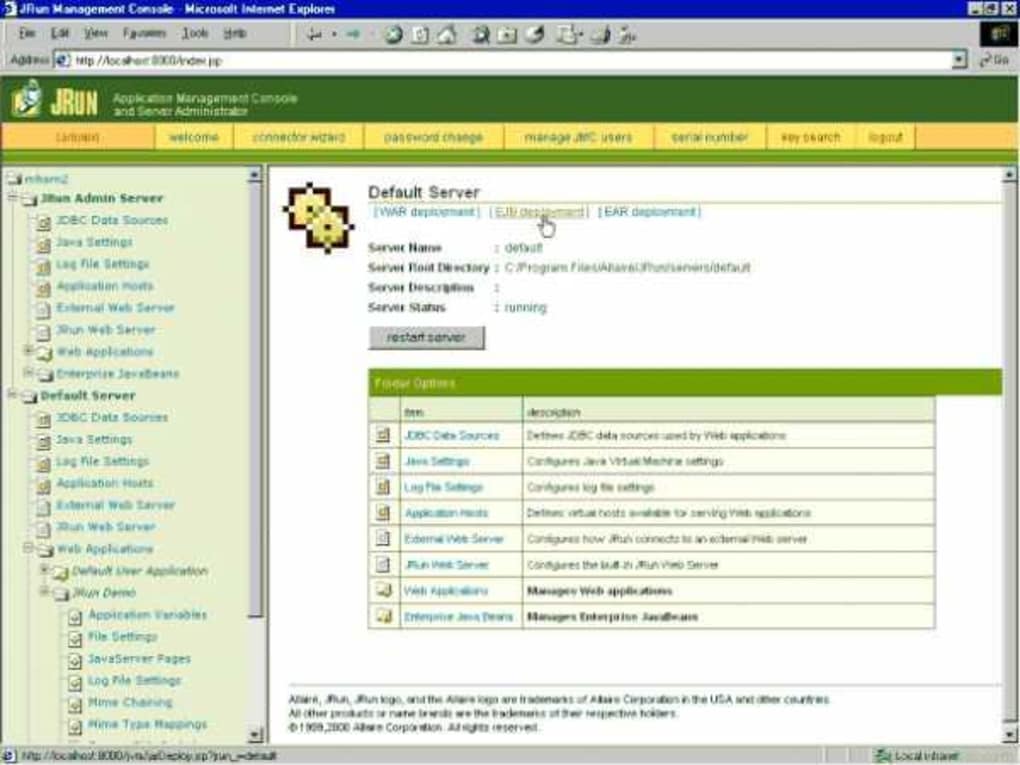
- Easy-to‑use administration console for monitoring threads, sessions, and resource pools.
- Compatibility with popular IDEs such as Eclipse and NetBeans for seamless deployment.
- Trial version includes full feature set for 30‑day evaluation.
Step‑by‑Step Installation & Usage
Installing Macromedia JRun on a Windows machine is intentionally straightforward, catering to developers who may not have extensive system‑admin experience. Begin by downloading the installer from a reputable source—preferably the official Macromedia archive or a trusted software catalog. The installer is a single executable (jrun_setup.exe) of roughly 12 MB, reflecting the program’s compact nature.
1. Run the Installer: Double‑click the executable and follow the wizard. Accept the license agreement, then choose the installation directory (default is C:\Program Files\Macromedia\JRun). The wizard will automatically detect the appropriate Windows version (Windows 98, ME, or 2000) and set the required environment variables.
2. Configure Java Runtime: JRun requires a compatible JRE (Java 1.4 or later). If a suitable JRE isn’t detected, the installer prompts you to locate it or download it from Oracle’s archive. Once linked, the server can compile and run your Java code.
3. Start the Server: After installation, launch the JRun Administration Console from the Start menu. The console runs on http://localhost:8080/servlet/AdminServlet by default. Use the provided admin credentials (admin/admin for the trial) to log in, then click “Start Server.” The server boots in seconds, displaying real‑time status messages.
4. Deploy an Application: Create a WAR file of your web application, then drop it into the deploy folder located in the JRun installation directory. The server auto‑detects the new WAR, extracts it, and makes it available at http://localhost:8080/yourAppName. For advanced deployments, you can edit the jrun-config.xml file to define custom context roots, data sources, and security realms.
5. Monitor & Tune: The Administration Console provides graphs for CPU, memory, and thread usage. Adjust the JVM heap size in the jrun.ini file if you anticipate high traffic. Because JRun is lightweight, you’ll often find that modest hardware can support dozens of concurrent users without degradation.
Following these steps, developers can have a fully functional J2EE server up and running within minutes, enabling rapid prototyping, testing, or even low‑volume production deployments.
System Compatibility, Pros & Cons
Macromedia JRun is officially supported on legacy Windows operating systems, including Windows 98, Windows ME, and Windows 2000. The installer detects the OS version and automatically applies the appropriate registry settings. Although newer versions of Windows (XP, Vista, 7, and beyond) can run JRun in compatibility mode, official support and testing were never extended beyond the early 2000s, so users on modern platforms may encounter subtle quirks. The application runs on 32‑bit architectures and requires a minimum of 128 MB RAM, though 256 MB is recommended for smoother operation.
Pros
- Small Footprint: Takes up far less disk space than enterprise‑grade servers like WebSphere or WebLogic.
- Fast Startup: Boots in seconds, which is ideal for development cycles and frequent restarts.
- Full J2EE 1.3 Support: Handles Servlets, JSP, and EJB without needing additional plugins.
- Built‑in Clustering: Simple configuration for load balancing even on modest hardware.
- Free Trial: Offers the entire feature set for 30 days, allowing thorough evaluation before purchase.
- Ease of Use: Intuitive admin console and straightforward deployment process.
Cons
- Outdated OS Support: Officially limited to Windows 98/ME/2000, making it unsuitable for most modern environments.
- No Official Updates Since 2007: Security patches and bug fixes are no longer released, raising potential vulnerability concerns.
- Limited Documentation: Community resources are sparse compared to newer servers, leading to a steeper learning curve for uncommon issues.
- English‑Only Interface: No localization options, which may hinder non‑English speaking teams.
- Trial Restrictions: After the 30‑day period, the server disables core functionalities unless a commercial license is purchased.
Review Summary: Macromedia JRun remains a capable, lightweight J2EE server for legacy Windows environments. Its speed, simplicity, and free trial are strong selling points, but the lack of modern OS support and absent updates limit its relevance for contemporary production use.
Conclusion, FAQ & Call to Action
In summary, Macromedia JRun offers a unique blend of speed, simplicity, and affordability that still resonates with developers maintaining legacy Java applications on older Windows machines. If you are looking for a server that can be set up in minutes, consumes minimal resources, and provides a full J2EE 1.3 stack without a hefty price tag, JRun is worth a close look—especially during its 30‑day free trial. However, for new projects targeting modern Windows versions or cloud deployments, you may want to consider more actively maintained alternatives such as Apache Tomcat, Eclipse Jetty, or commercial offerings that receive regular security patches.
Frequently Asked Questions
Is Macromedia JRun still safe to use in 2025?
Because the last official update was in 2007, no new security patches have been released. For isolated development or internal legacy systems it can be acceptable, but you should isolate the server behind a firewall and avoid exposing it to the public internet.
Can JRun run on Windows 10 or Windows Server 2019?
Officially no, but you can try running it in Windows Compatibility Mode (set to Windows 98/2000). Results vary, and you may encounter UI glitches or service registration issues.
What Java version is required for JRun 4?
JRun 4 requires at least Java 1.4. It works with later JREs, but because the server itself is old, you may experience incompatibilities with Java 9+ features.
Is there a way to extend JRun with additional modules?
Yes, JRun supports custom servlet filters and JNDI resources via the jrun-config.xml file. However, community‑driven plugins are scarce, so you’ll often need to develop extensions yourself.
Where can I download the trial version legally?
The safest source is the official Macromedia (now Adobe) archive or reputable software repositories that verify checksums. Avoid third‑party sites that bundle unwanted software.
Ready to give Macromedia JRun a try? Click the button below to download the latest trial installer, and start deploying your Java web applications on a fast, lightweight server today. Remember to review the system requirements and consider the security implications before using JRun in a production environment.







